Advertise here
Tilt-shift is an effect that when applied to an image or in this case, a video, will create the illusion of miniaturization, making it seem as if the video is shooting a model set and not real life. To create one of these videos outside of Photoshop would require an expensive camera and and an even more expensive lens, which can cost into the thousands of dollars. In this tutorial I will show you how to create this effect using only Photoshop and how to apply it to almost any video.
Tutorial Assets
The following assets were used during the production of this tutorial.Download Original Footage
Before you begin. Let's take a look at the original footage. Make sure to download it from here.Step 1
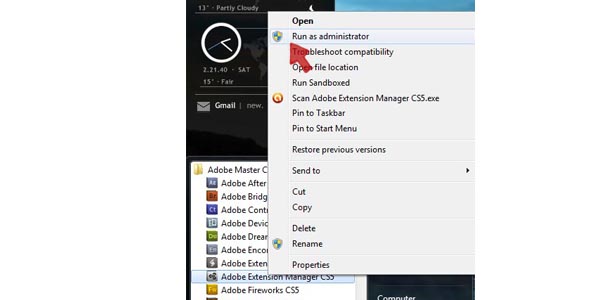
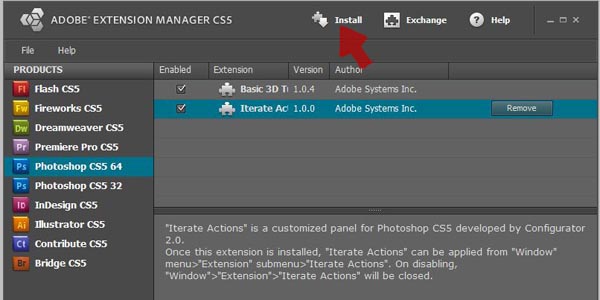
Before opening Photoshop, install the Extension that was included in the tutorial assets. Open the Adobe Extension Manager, which should be found in the Adobe folder.PC users, if for some reason, it will not let you install the Extension, close and re-open the Extension Manger by right-clicking on the program in the start menu and selecting "Run as administrator".
Step 2
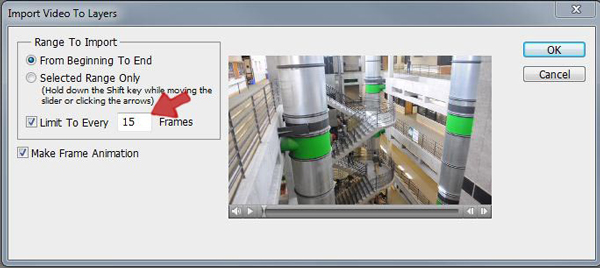
Open Photoshop and then choose File > Import > Import video frames to layers.For those users using CS5 or higher you'll need to use the 32bit version of Photoshop that should have been included in your install. You have to use the 32bit version because unfortunately Import video frames to layers utilizes the Quicktime API which remains a 32bit application.
For PC users, you should find the 32bit version in the Start menu, right next to the 64 bit version, if it's not there check the (x86) folder, still not there then re-install, the 32bit version was unchecked during the initial installation.
For Mac users, open the Photoshop folder in a finder window and Command/Ctrl-click on the Photoshop icon, then click on Get info, click the check mark to run the program in it's 32 bit mode.
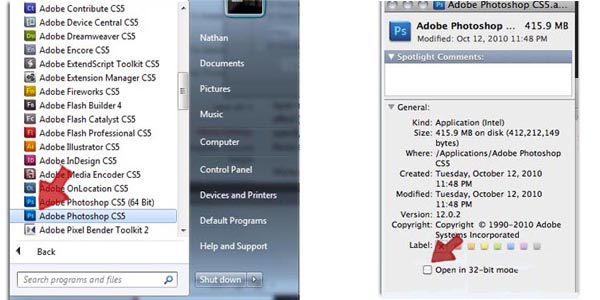
Note: You can work with video frame layers in the 64bit version. To do so import the video using the 32bit version, save the file as a .PSD file, then open the file up in the 64bit version.
Step 3
Before moving on, it will be helpful to setup your workspace, in the top right corner there are a number of workspace presets, you can select the Motion preset to load a number of popular tabs. However for this tutorial you will only be needing the Animation tab, Layers tab, Action tab and History tab.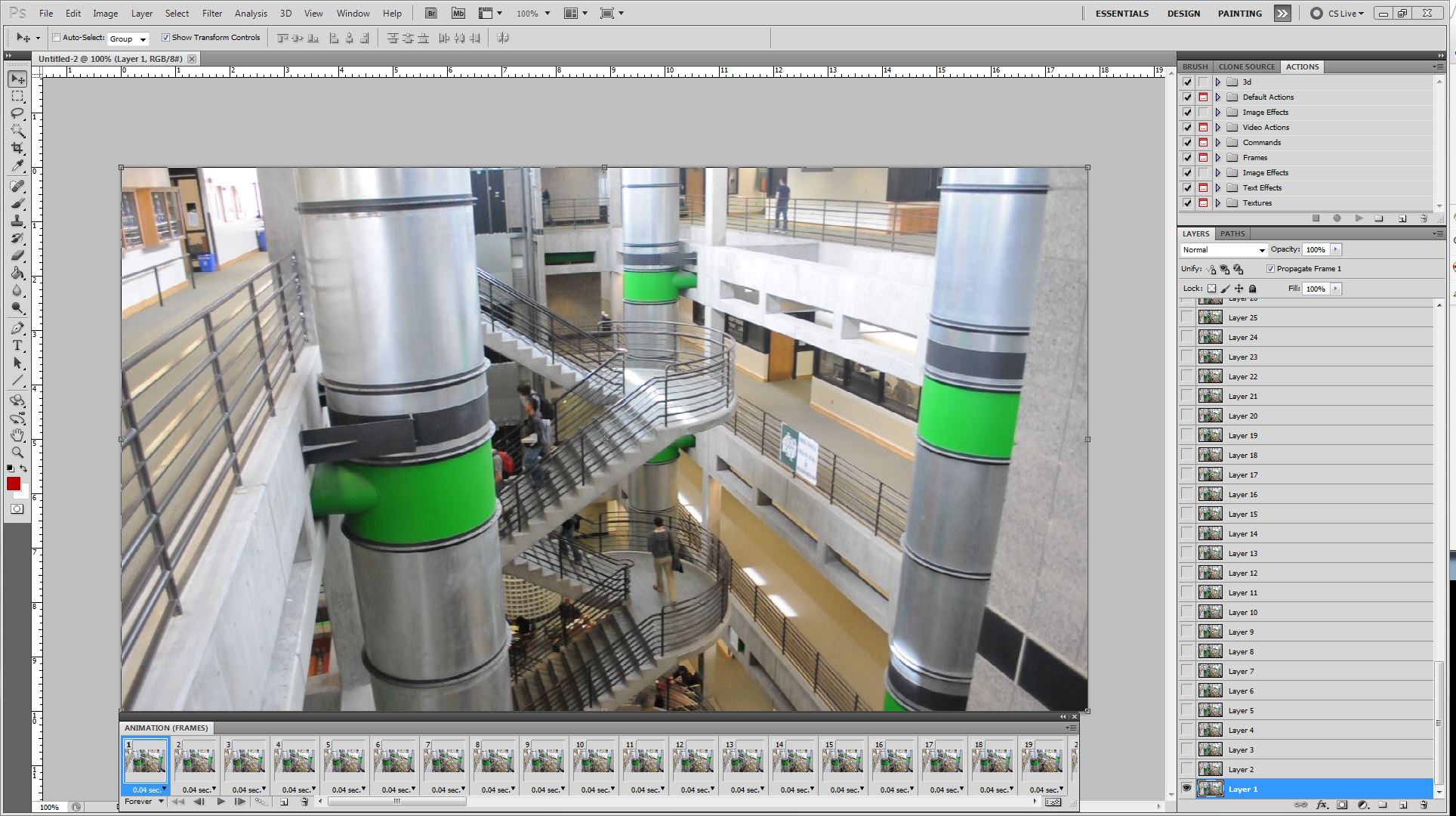
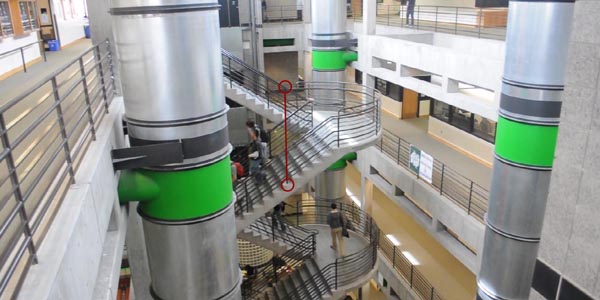
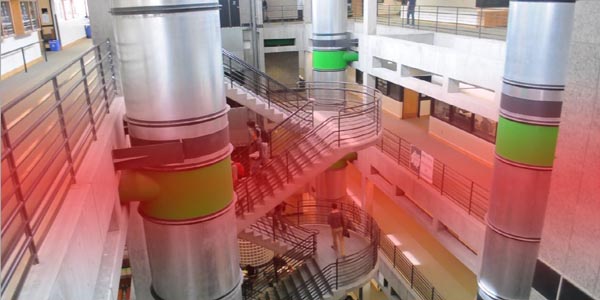
Note: This selection MUST remain in place throughout the rest of the tutorial. DO NOT deselect or else the effect will not work.
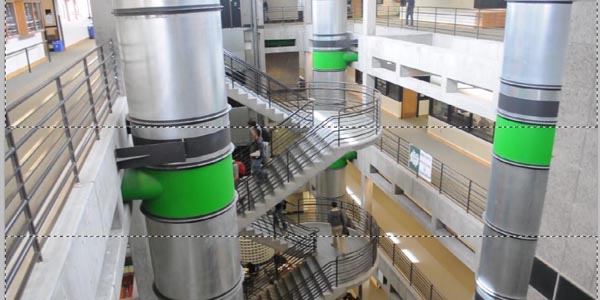
Step 4
With the selection in place, Choose Filter > Blur > Lens Blur. For this video the default settings are bit too much, so reduce the Radius to 20. Drop the Curvature to 27 and kill the Noise. Be advised that this filter can take some time to refresh on slower machines, so be patient. When you are happy with the effect press OK to apply.
Step 5
For the next two steps you'll want to try and exaggerate the brightness and color to help sell the effect. Choose Image > Adjustments > Brightness/Contrast, bump the Brightness by 50 and the Contrast by 25.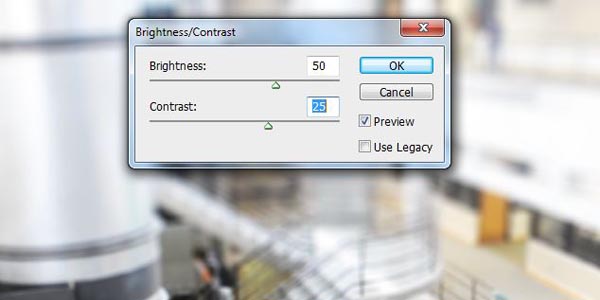
Step 6
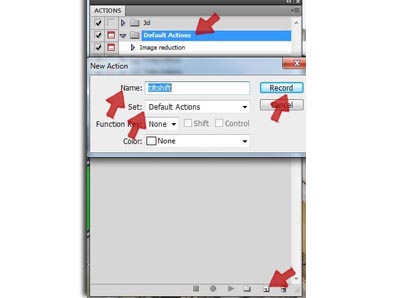
Now that you have an effect that you are happy with, it's time to apply it to the rest of the video. First save your file out as a .PSD file, then undo everything back to Step 4. Make sure that you DO NOT deselect the selection created in step 3.To create an Action, open the Action tab, press the new Action button near the bottom of the tab. Name the Action "titlshift", making sure it is saved in the Default Actions folder, (This will be important later on) then press Record. The round button at the bottom of the Action tab should turn red when recording.
Step 7
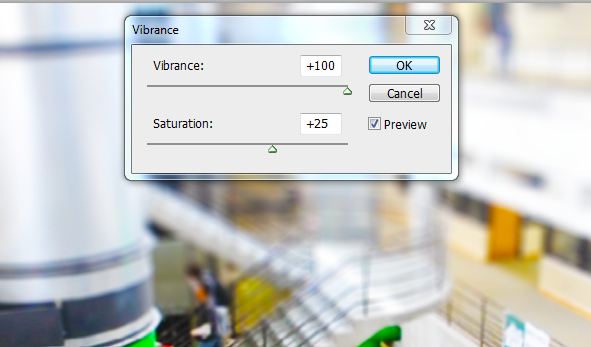
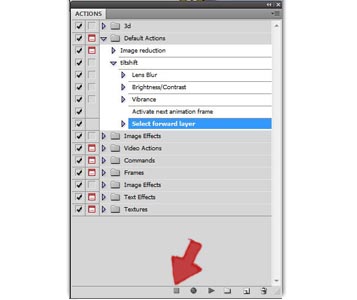
Now that Photoshop is recording, you can begin by re-applying the Lens blur effect. Choose Filter > Blur > Lens Blur or press Command/Ctrl + F to apply the last filter. Then Choose Image > Adjustment > Brightness/Contrast and apply the same setting's as before. Then Choose Image > Adjustment > Vibrance and apply the same settings as before. Double check that Photoshop only recorded these three actions. If Photoshop accidently recorded an extra step, don't worry, press the stop button, drag the unwanted step to the garbage can at the bottom right corner, then press the round record button to begin recording again.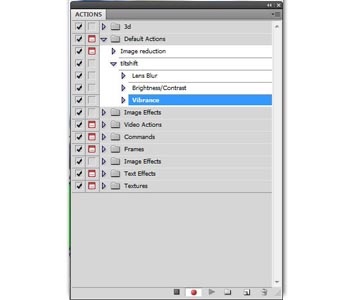
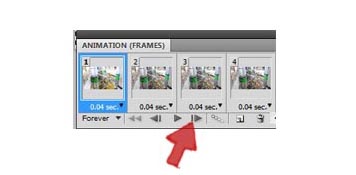
These last two actions are critical to the looping script you are going to use. All the looping script is doing is pressing the play button a set number of times for us, by having Photoshop move the selection forward, it is going to allow the looping script to move up the layers in the file applying the effect.
With this last step recorded, press the square Stop bottom at the bottom of the actions tab to end the recording.
Author's Note
It's time to test your Action. Press the Play button a couple of times to ensure that it is applying the effect the way you want and that it is moving the selections forward. Now is the time to make adjustments if needed. Remember to save the document if you haven't already.Before you proceed, I need to take a moment and give credit to Dr. WooHoo who has generously provided the Iterate script free of charge to the world. It was published in the May/June 2009 issue of Photoshop User Magazine and is also available on his website here.
Step 8
If you have ever played around with Photoshop Actions, you may have come across this odd limitation within Photoshop's extensive Automation tools. For whatever reason, Photoshop cannot loop Actions to multiple layers within a single file, it is this limitation that Dr. WooHoo script corrects. If you haven't already installed the Iterate script then save your work, close Photoshop and jump back to Step 1. If the extension's been installed, then choose Window > Extension > Iterate Actions.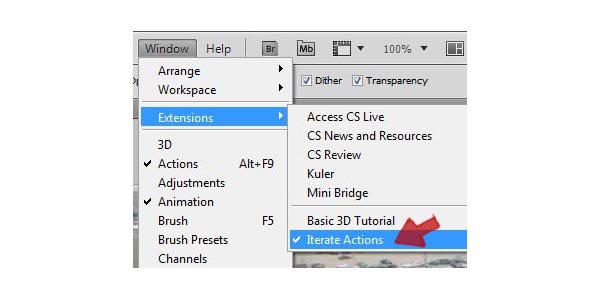
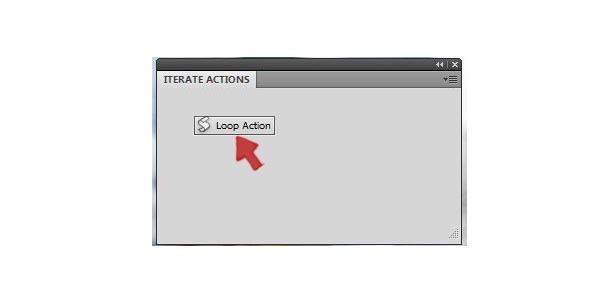
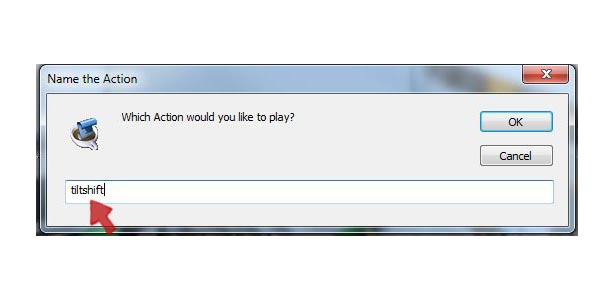
(Don't worry if your off a frame or two, you can always manually run the action if the script misses a few frames, However make sure you don't tell the script to run more times than you have frames, once the script hits the last frame, it will start over with frame one.)
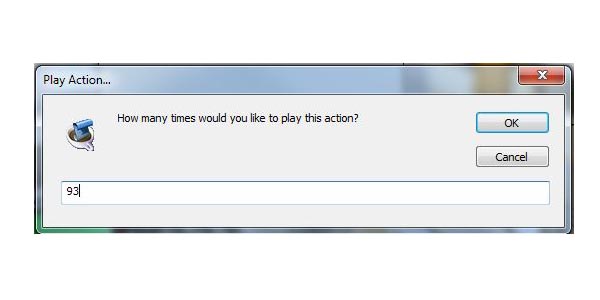
Step 9
Once it's done applying the effect, play the video through a couple times, If you are happy with the final effect, its time to render the video out. First step is to change the frame delay from it's native 0.04secs to 0.1 secs. To change the delay, select Frame One then scroll down and Shift-Click on the last Frame, you should then see a blue outline around all the Frames. Click on on the small black arrow just under the right corner of the one of the Frames, and change the delay to 0.1 secs. Changing this setting's will adjust the rendered video playback speed, leaving it at 0.04secs would have the video playing back a bit too fast.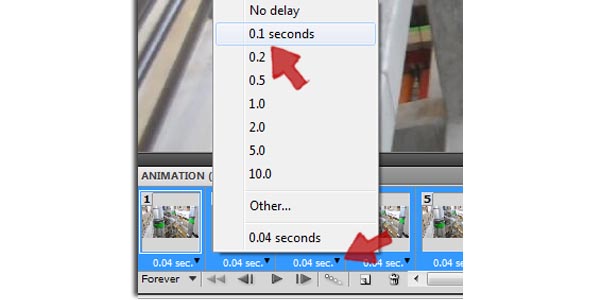
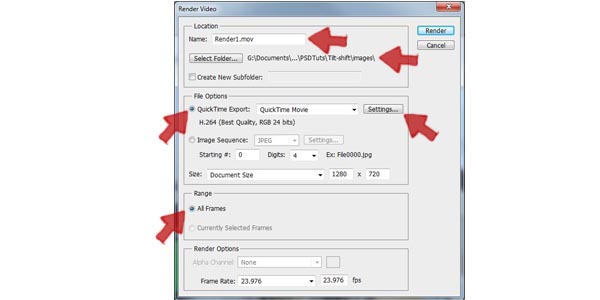
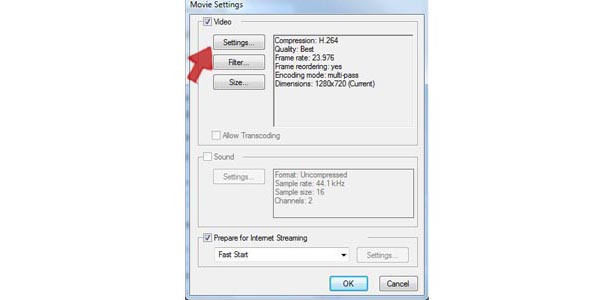
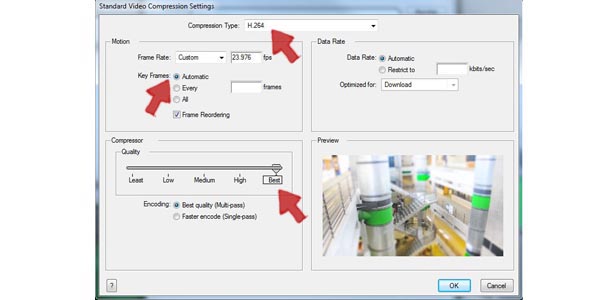
Option One: Export as a compressed video file, perfect if the video is a stand alone piece.
Option Two: If your using this video as part of a larger project, export the video as an image sequence, you'll retain the highest image quality possible, however this method will require the use of another program, such as After Effects, when it comes time to export the image sequence as a video file.
Final Video
Nathan White 06 Jun, 2011
--
Source: http://psd.tutsplus.com/tutorials/tutorials-effects/tilt-shift-video/
~


 Postingan


0 komentar:
Posting Komentar
Ayo gan Komentarnya jangan lupa,,,biar tambah semangat yang upload Film dan Game dan berita juga update artikelnya, kalau ada link yang mati laporkan juga disini ya...